Robot Application
1. UR5 Simulation setup
1.1 Introduction
This section describes how to setup UR5 robot simulation in Gazebo along with Kinect sensor.
1.2 Installation
gazebo_ros_pkgs(this package is already installed on your system)universal_robots(this package has Moveit configuration packages for different Universal robots)$ cd ~/moveit_ws/src $ git clone https://github.com/ros-industrial/universal_robot $ cd .. $ catkin_make $ source devel/setup.bash
1.3 Startup
Open each command below in a new terminal:
Simulation:
$ roslaunch ur5_moveit_config_pkg ur5_gazebo.launch
(Press play in Gazebo GUI to start the simulation)
$ roslaunch ur5_moveit_config_pkg ur5_moveit_planning_execution.launch sim:=true
$ rviz
Real robot:
$ roslaunch ur5_moveit_config_pkg ur5_bringup_joint_limited.launch robot_ip:=192.168.0.10
$ roslaunch ur5_moveit_config_pkg ur5_moveit_planning_execution.launch sim:=false
$ rviz
1.4 RViz configuration
Add the “Motion Planning” type into RViz
Set the fixed frame to “world”
2. AR Alvar Tag Detection
2.1 Introduction
Object recognition is essential in higher level robotic applications. To achieve this, the goal in this tutorial is to detect the fiducial markers (“AR Tags”) based on RGB data given by a simulated RGBD camera.
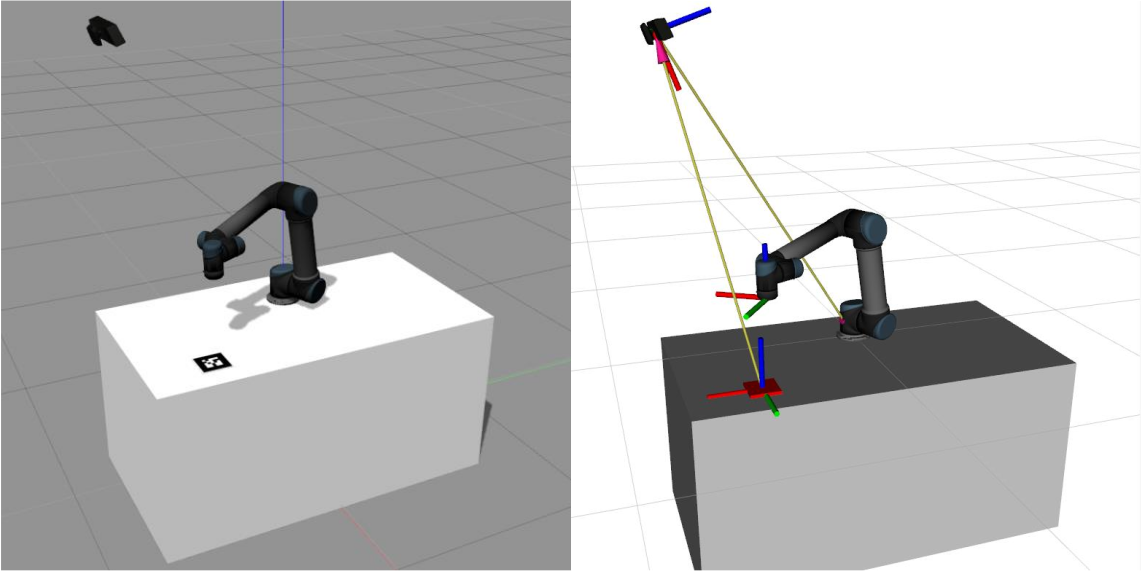
Simulation environment
2.1 Installation and Startup
AR Markers are fiducial markers. They provide a way of visual pose estimation. AR Markers can be detected by the ar_track_alvar package. This package can be installed in the following manner along with the package openni2_launch to read camera images:
$ sudo apt-get install ros-noetic-openni2-launch
In a new terminal, start the launch file ar.launch from the tutorial_commons package to detect the AR Tags in the simulation as well. AR Track Alvar works out of the box by just running it, you only need to determine the length of one side of the tag and the image topic to be used. This is parameterized in the launch file.
$ roslaunch tutorial_commons ar.launch
marker size: 13cm x 13cm
camera image topic: /camera/rgb/image_raw
camera info topic: /camera/rgb/camera_info
output frame: /camera_link
When you start up AR-Track Alvar you can visualize the detected AR Tags by enabling the topic /visualization_marker in Rviz. You can also visualize (and make use of) tf data provided by AR-Track Alvar as it also represents detected Markers by publishing transforms. Once you started it up for the first time and set up the appropriate visualizations in rviz you’ll probably notice a screen like the following:
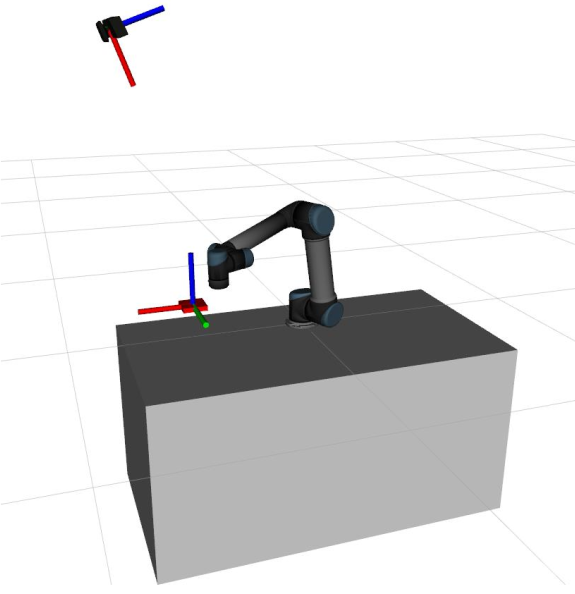
AR Tags at wrong size
3. Application: “Move arm above AR Tag”
3.1 Introduction
This section describes the final task for this session. It is supposed to wrap up your knowledge about URDF, TF and MoveIt! and create a real-world application with it.
3.2 Task description
The final task for the application development is to complete a python node that interacts with the UR5 MoveIt’s moveit_commander interface to move the robot’s end- effector above the AR Tag. See figure 1 for further description. The node of interest is called arm_move.py in the moveit_tutorial package. It contains several methods to modify the position of the end-effector and to process data given by the AR Track Alvar node. Your task is to simply complete the node to let the arm move above the AR tag in a continuous loop. Following is the list of tasks to be completed:
Hint
$ cd ~/moveit_ws/ros_manipulation_day4/moveit_tutorial/scripts
$ touch arm_move.py
$ chmod +x arm_move.py
 1#!/usr/bin/env python3
 2
 3import sys
 4import rospy
 5import moveit_commander
 6import tf
 7from geometry_msgs.msg import Pose
 8from ar_track_alvar_msgs.msg import AlvarMarkers
 9
10#declare global variables
11world_frame = "world"
12vel_scaling =  .3
13home_position = [.4, .0, .3]
14home_orientation = [.0, .0, .0, .1]
15marker_pose = None
16
17#convert marker from camera frame to robot's base frame
18def transform_pose(pose, target_frame):
19    if tf_listener.canTransform(target_frame, pose.header.frame_id, rospy.Time(0)):
20        #transform pose
21        transform = tf_listener.transformPose(target_frame, pose)
22        return transform.pose
23
24#callback function to receive marker messages
25def marker_cb(msg):
26    global marker_pose
27    if len(msg.markers) == 0:
28        return
29    marker = msg.markers[0]
30    marker.pose.header.frame_id = marker.header.frame_id
31    marker_pose = transform_pose(marker.pose, world_frame)
32
33#set Pose message through lists
34def set_pose(xyz = [0, 0, 0], q = [0, 0, 0, 1]):
35    pose = Pose()
36    pose.position.x = xyz[0]
37    pose.position.y = xyz[1]
38    pose.position.z = xyz[2]
39    pose.orientation.x = q[0]
40    pose.orientation.y = q[1]
41    pose.orientation.z = q[2]
42    pose.orientation.w = q[3]
43    return pose
44
45#confirm if plan should be executed
46def plan_accepted():
47    return input("Do you want to execute the plan [y] or replan [n]? ") == "y"
48
49#plan and execute to given pose; If plan is not confirmed plan again
50def plan_and_execute(group, pose):
51    group.set_pose_target(pose)
52    if plan_accepted():
53        group.go(wait=True)
54        group.stop()
55        group.clear_pose_targets()
56    else:
57        exit()
58
59#main function of application
60def main():
61    #initialize moveit
62    moveit_commander.roscpp_initialize(sys.argv)
63
64    # Your Code For Task 1 #
65    group.set_max_velocity_scaling_factor(vel_scaling)
66
67
68    #while loop to move the robot to the found AR marker
69    while not rospy.is_shutdown():
70        plan_and_execute(group, set_pose(home_position, home_orientation))
71        if marker_pose:
72            marker = [marker_pose.position.x, marker_pose.position.y, home_position[2]]
73            plan_and_execute(group, set_pose(marker))
74        else:
75            rospy.logwarn("No marker detected.")
76
77if __name__ == '__main__':
78    rospy.init_node('move_to_marker', anonymous=True)
79    tf_listener = tf.TransformListener()
80
81    # Your Code for Task 2 #
82
83    main()
Task 1: Instantiate
MoveGroupCommanderwith the correct group name. Refer to Rviz to get the group name in the Motion Planning` tab.group = moveit_commander.MoveGroupCommander("group name")
Task 2: Add a subscriber to ar pose marker topic. Find out the message type of the topic from command line using rostopic.
$ rostopic info /ar_pose_marker
rospy.Subscriber("topic name", AlvarMarkers, marker_cb)
Run
$ rosrun moveit_tutorial arm_move.py
Now change the position of marker in the Gazebo simulation.