Workshop: Teleoperation¶
Introduction¶
This tutorial introduces various kinds of teleoperation that can be used to steer a mobile robot. Besides, it explains how to work in a ROS network.
Commands and System variables are highlighted in grey boxes.
Lines beginning with ‡‡ indicates the syntax of these commands.
Commands are executed in a terminal:
Open a new terminal → use the shortcut ctrl+alt+t.
Open a new tab inside an existing terminal → use the shortcut ctrl+shift+t.
Gerneral approach¶
The majority of the ROS operated mobile robots have their own dedicated computer on board. The main task of the machine is to run the driver for the hardware like motor of the wheels and laser scanner. The reason therefore is that the hardware is mostly connected via USB and thus, it is not possible to run the driver from another computer remotely. Another advantage is that this essential nodes are not affected by any network problems. However, additional programs that require high processing power like image processing or visualizing data should be started on a second workstation with more power. The workshop will start by running the simulated TurtleBot and steering it with the keyboard through a virtual world. Afterwards, it will explain how the network between two machines (the one of the mobile robot and the remote one) can be established. Finally, it will show various ways to steer the mobile robot via the ROS system. The fact that it is so easy to connect different hardware and switch between different set-ups shows two of the main advantages of the operating system.
Startup a TurtleBot simulation¶
For the Turtlebot3 simulation you have to install the turtlebot3_simulations package:
$ sudo apt-get install ros-melodic-turtlebot3-simulations
If the package is already installed, the install process will show that no new package has been installed.
In order to start any Turtlebot3 application it is important to export the model as an environment variable. The two available models are “burger” and “waffle”. Afterwards, run the depicted launch file to start the Gazebo simulator and load the world and the robot.
$ export TURTLEBOT3_MODEL=waffle
$ roslaunch turtlebot3_gazebo turtlebot3_world.launch
Hint
Make sure to use the right TurtleBot3 model.
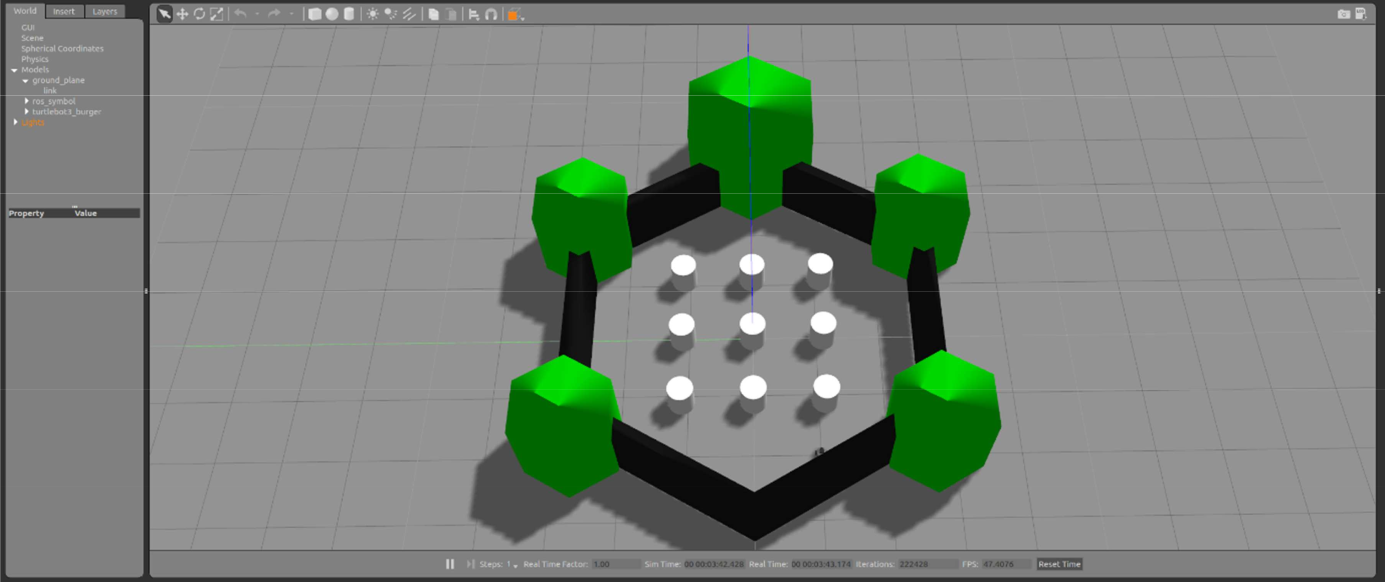
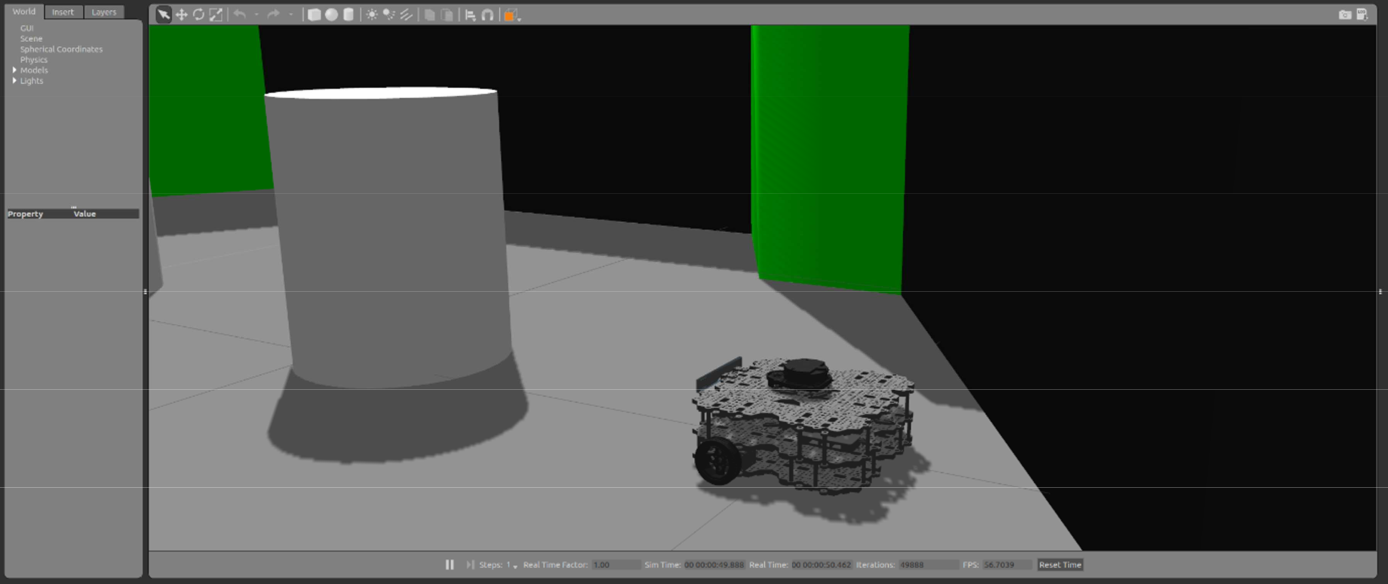
This step can take a while to fully load. It should launch a window containing the Gazebo simulator looking as follows:
Control the robot via keyboard¶
On a new terminal start another ROS node, which will enable to send ROS messages on the /cmd_vel topic from the keyboard.
$ roslaunch turtlebot3_teleop turtlebot3_teleop_key.launch
If the program is successfully launched, the following output will appear in the terminal window and you can control the robot following the instruction.
Hint
Move the robot only on the ground!
Control Your Turtlebot3!
Moving around:
  w
a s d
  x
w/x : increase/decrease linear velocity
a/d : increase/decrease angular velocity
space key, s : force stop
CTRL-C to quit